Installation and Activation Guide
Installation and Activation Guide
Install once, use everywhere. Get online in under 2 minutes.
Install your Umi eSIM (Easy)
Installation is a breeze with our smart install. You're online in less than 2 minutes. Buy a plan or top-up to get your free eSIM.
Download
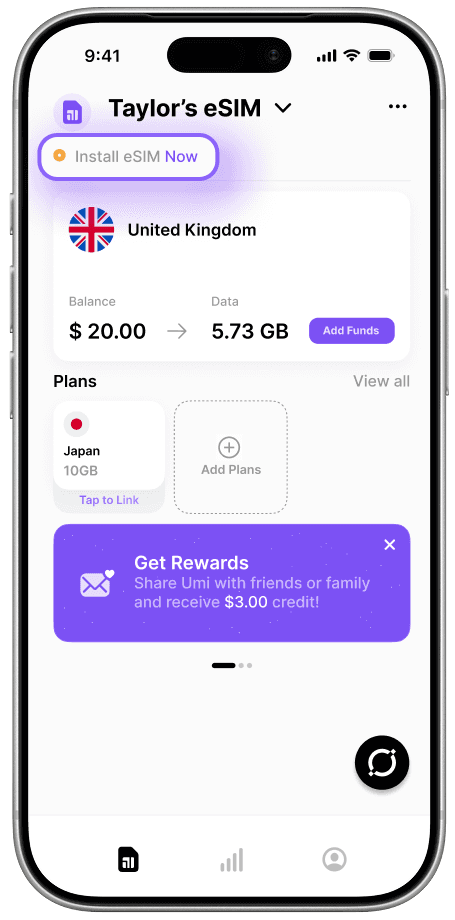
Step 1
Go to your Umi app
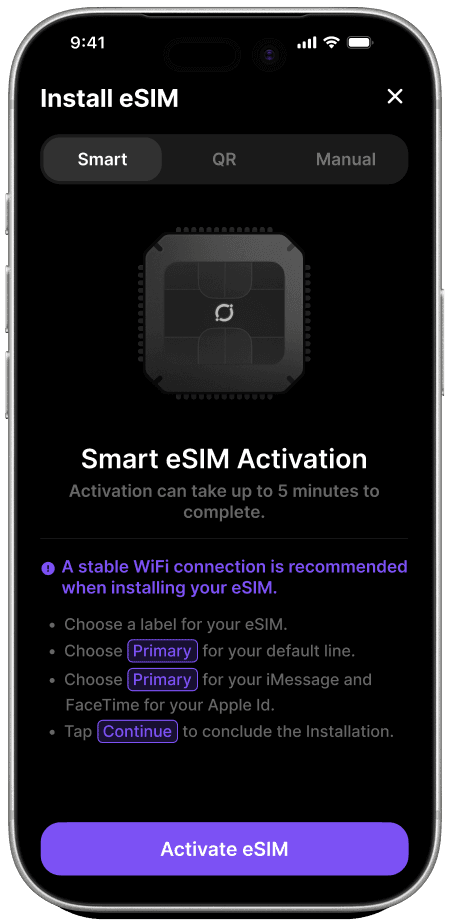
Step 2
Tap Activate eSIM
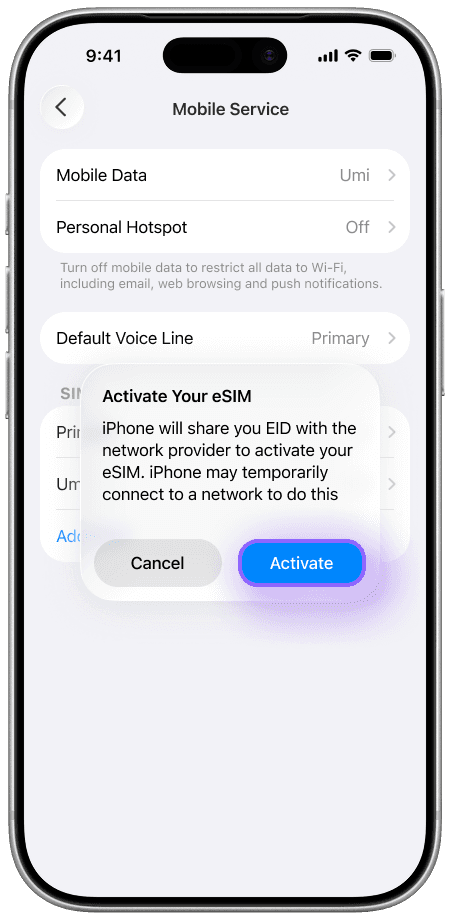
Step 3
Tap Activate
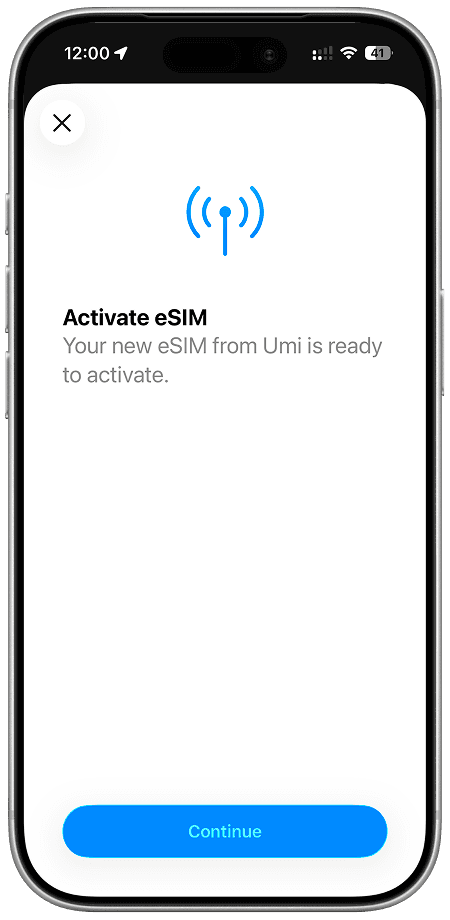
Step 4
Tap Continue
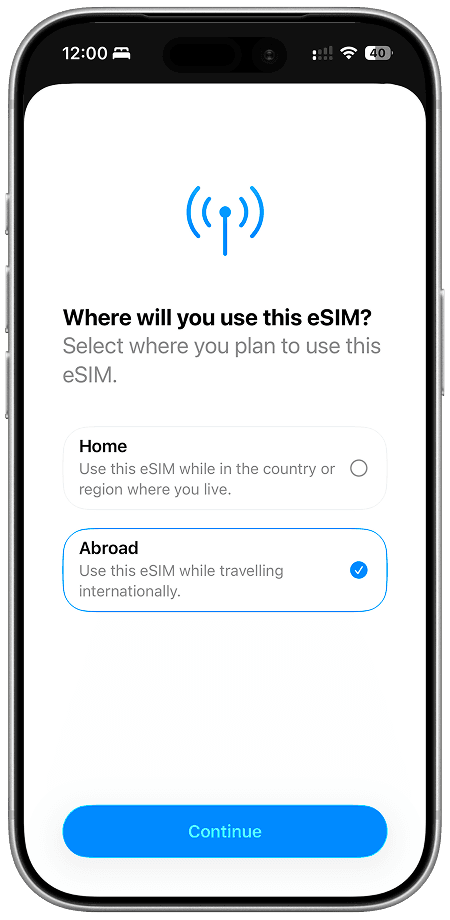
Step 5
Select Abroad
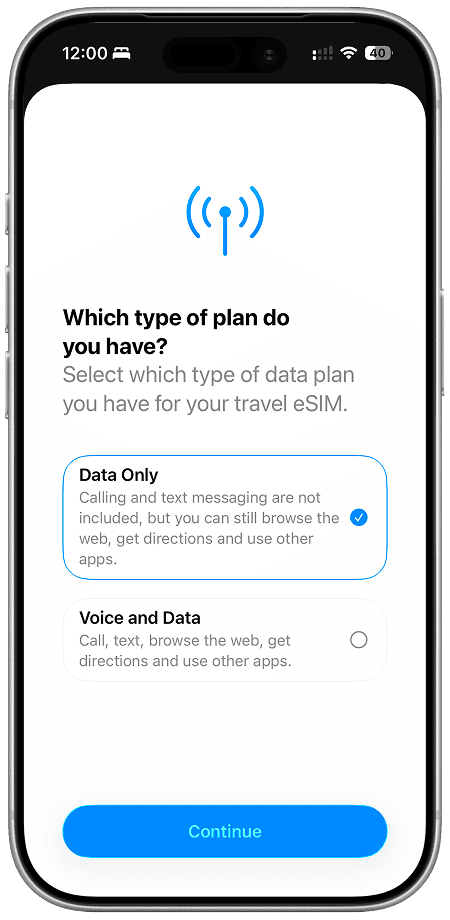
Step 6
Select Data Only
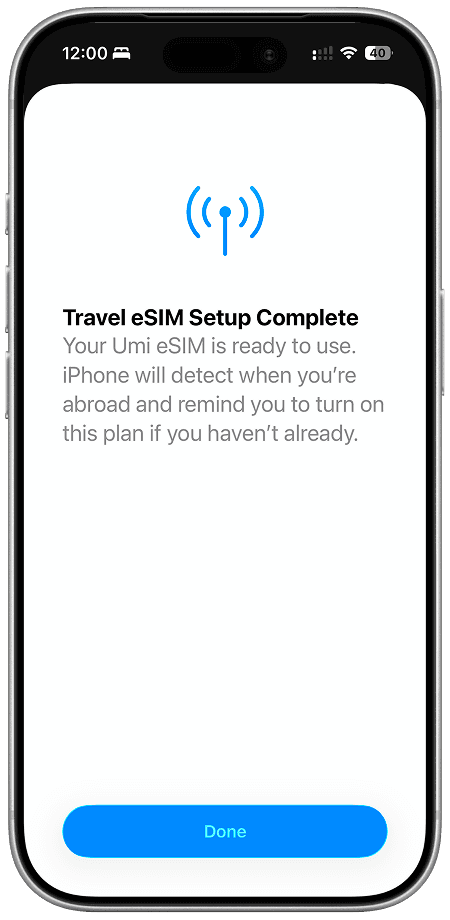
Step 7
Tap Done (not done yet)
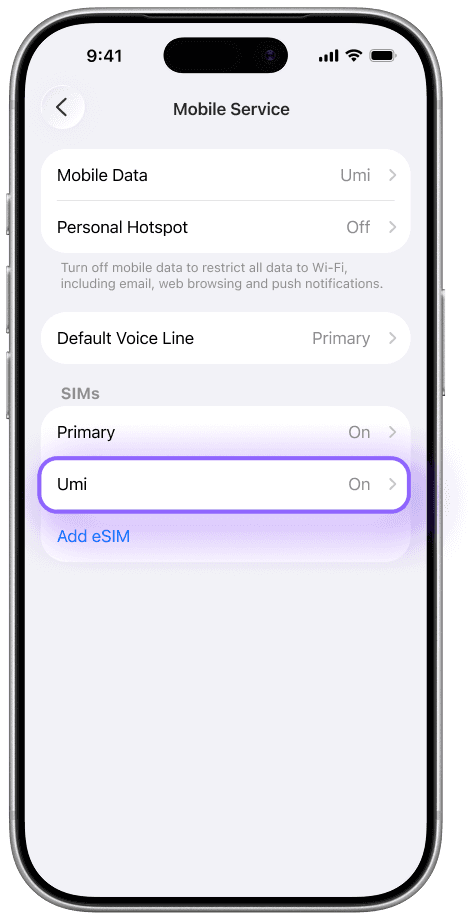
Step 8
Select your Umi eSIM
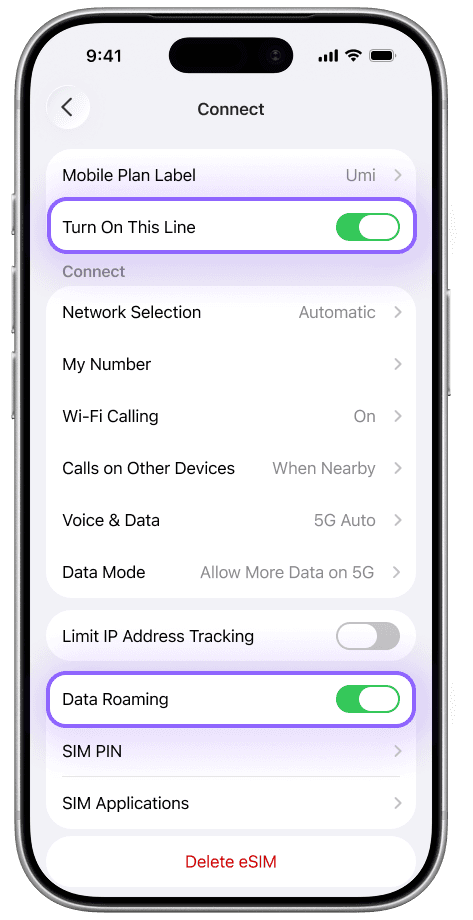
Step 10
Turn on This Line and Data Roaming
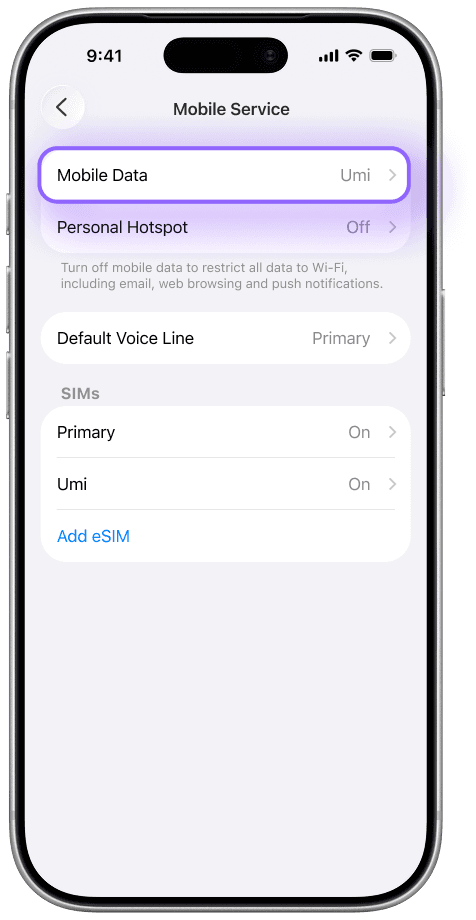
Step 11
Go to Mobile Data
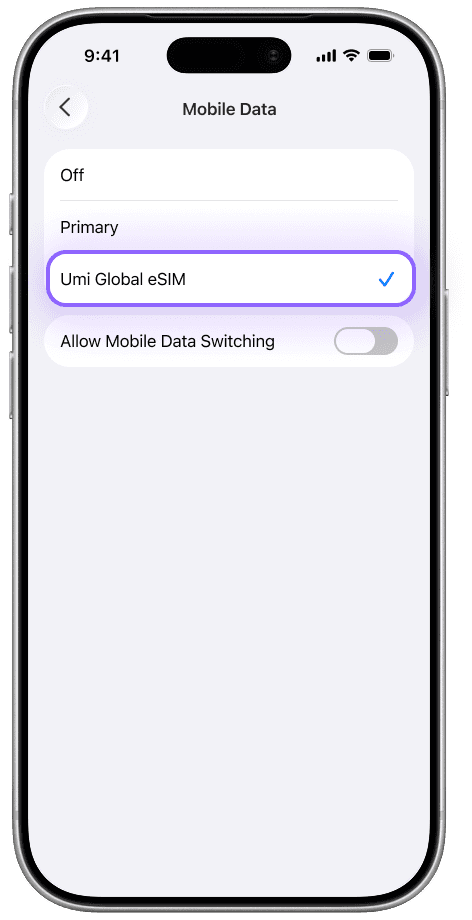
Step 12
Select your Umi eSIM
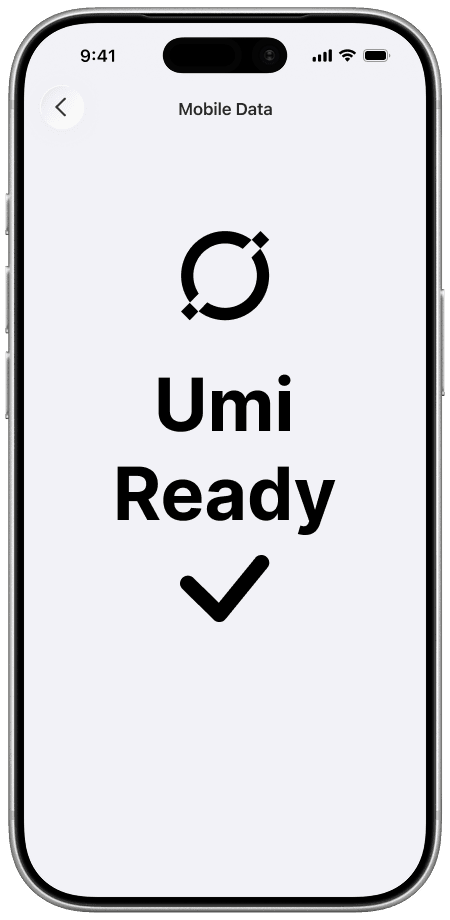
All Done
You're good to go!
Step 1
Go to your Umi app
Step 2
Tap Activate eSIM
Step 3
Tap Activate
Step 4
Tap Continue
Step 5
Select Abroad
Step 6
Select Data Only
Step 7
Tap Done (not done yet)
Step 8
Select your Umi eSIM
Step 10
Turn on This Line and Data Roaming
Step 11
Go to Mobile Data
Step 12
Select your Umi eSIM
All Done
You're good to go!
Step 1
Go to your Umi app
Step 2
Tap Activate eSIM
Step 3
Tap Activate
Step 4
Tap Continue
Step 5
Select Abroad
Step 6
Select Data Only
Step 7
Tap Done (not done yet)
Step 8
Select your Umi eSIM
Step 10
Turn on This Line and Data Roaming
Step 11
Go to Mobile Data
Step 12
Select your Umi eSIM
All Done
You're good to go!
Step 1
Go to your Umi app
Step 2
Tap Activate eSIM
Step 3
Tap Activate
Step 4
Tap Continue
Step 5
Select Abroad
Step 6
Select Data Only
Step 7
Tap Done (not done yet)
Step 8
Select your Umi eSIM
Step 10
Turn on This Line and Data Roaming
Step 11
Go to Mobile Data
Step 12
Select your Umi eSIM
All Done
You're good to go!
Step 1
Go to your Umi app
Step 2
Tap Activate eSIM
Step 3
Tap Activate
Step 4
Tap Continue
Step 5
Select Abroad
Step 6
Select Data Only
Step 7
Tap Done (not done yet)
Step 8
Select your Umi eSIM
Step 10
Turn on This Line and Data Roaming
Step 11
Go to Mobile Data
Step 12
Select your Umi eSIM
All Done
You're good to go!
Step 1
Go to your Umi app
Step 2
Tap Activate eSIM
Step 3
Tap Activate
Step 4
Tap Continue
Step 5
Select Abroad
Step 6
Select Data Only
Step 7
Tap Done (not done yet)
Step 8
Select your Umi eSIM
Step 10
Turn on This Line and Data Roaming
Step 11
Go to Mobile Data
Step 12
Select your Umi eSIM
All Done
You're good to go!
Step 1
Go to your Umi app
Step 2
Tap Activate eSIM
Step 3
Tap Activate
Step 4
Tap Continue
Step 5
Select Abroad
Step 6
Select Data Only
Step 7
Tap Done (not done yet)
Step 8
Select your Umi eSIM
Step 10
Turn on This Line and Data Roaming
Step 11
Go to Mobile Data
Step 12
Select your Umi eSIM
All Done
You're good to go!
Step 1
Go to your Umi app
Step 2
Tap Activate eSIM
Step 3
Tap Activate
Step 4
Tap Continue
Step 5
Select Abroad
Step 6
Select Data Only
Step 7
Tap Done (not done yet)
Step 8
Select your Umi eSIM
Step 10
Turn on This Line and Data Roaming
Step 11
Go to Mobile Data
Step 12
Select your Umi eSIM
All Done
You're good to go!
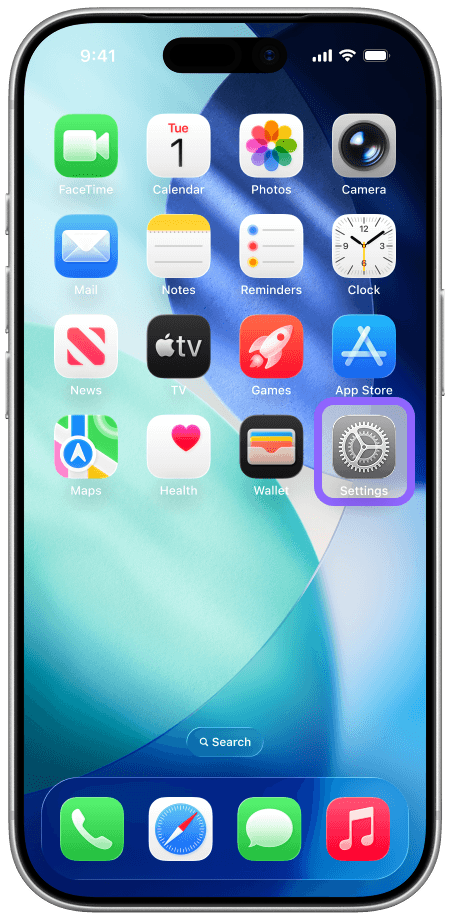
Step 1
Go to Settings
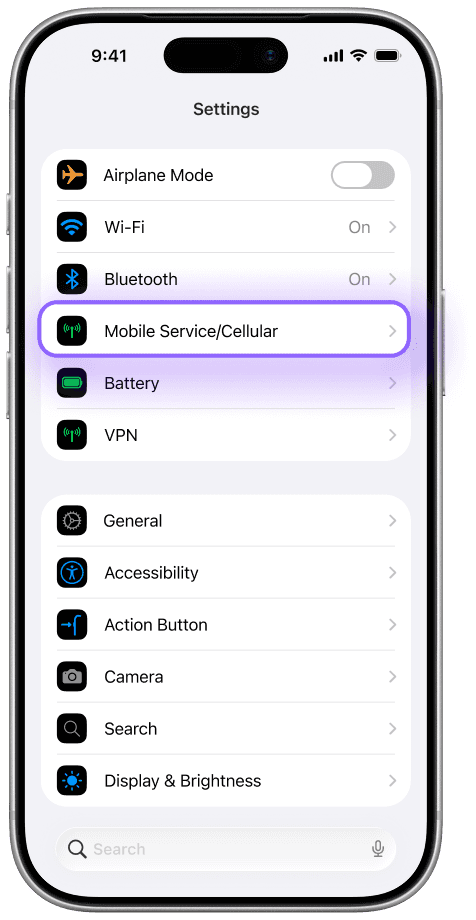
Step 2
Go to Mobile Service
Step 3
Select your Umi eSIM
Step 4
Turn on This Line and Data Roaming
Step 5
Go to Mobile Data
Step 6
Select your Umi eSIM
All Done
You're good to go!
Step 1
Go to Settings
Step 2
Go to Mobile Service
Step 3
Select your Umi eSIM
Step 4
Turn on This Line and Data Roaming
Step 5
Go to Mobile Data
Step 6
Select your Umi eSIM
All Done
You're good to go!
Step 1
Go to Settings
Step 2
Go to Mobile Service
Step 3
Select your Umi eSIM
Step 4
Turn on This Line and Data Roaming
Step 5
Go to Mobile Data
Step 6
Select your Umi eSIM
All Done
You're good to go!
Step 1
Go to Settings
Step 2
Go to Mobile Service
Step 3
Select your Umi eSIM
Step 4
Turn on This Line and Data Roaming
Step 5
Go to Mobile Data
Step 6
Select your Umi eSIM
All Done
You're good to go!
Step 1
Go to Settings
Step 2
Go to Mobile Service
Step 3
Select your Umi eSIM
Step 4
Turn on This Line and Data Roaming
Step 5
Go to Mobile Data
Step 6
Select your Umi eSIM
All Done
You're good to go!
Step 1
Go to Settings
Step 2
Go to Mobile Service
Step 3
Select your Umi eSIM
Step 4
Turn on This Line and Data Roaming
Step 5
Go to Mobile Data
Step 6
Select your Umi eSIM
All Done
You're good to go!
Step 1
Go to Settings
Step 2
Go to Mobile Service
Step 3
Select your Umi eSIM
Step 4
Turn on This Line and Data Roaming
Step 5
Go to Mobile Data
Step 6
Select your Umi eSIM
All Done
You're good to go!
Step 1
Go to Settings
Step 2
Go to Mobile Service
Step 3
Select your Umi eSIM
Step 4
Turn on This Line and Data Roaming
Step 5
Go to Mobile Data
Step 6
Select your Umi eSIM
All Done
You're good to go!
Switch to your Umi eSIM (Fast)
Switch on your eSIM and change it to your phone's data line, if you already have it installed.
Download

Global eSIM,
Local Hero.
Work, travel, explore - Umi keeps you connected anywhere.
No roaming, no hassle, just smart, seamless internet.

Connect globally on 1 eSIM
High Speed, low latency everywhere
Pay-as-you-go balance that never expires
Works on eSIM enabled + unlocked devices
Native phone numbers coming soon!
Download
Global eSIM,
Local Hero.
Work, travel, explore - Umi keeps you connected anywhere.
No roaming, no hassle, just smart, seamless internet.
Connect globally on 1 eSIM
High Speed, low latency everywhere
Pay-as-you-go balance that never expires
Works on eSIM enabled + unlocked devices
Native phone numbers coming soon!
Download
